Prov (TM) Exam services for occupational assessment
Exam Services for Occupational Assessment

Candidates
 
Clients

Welcome Candidates.


Score Results

To access your score results, type in the ID and PIN numbers you used when taking your examination.  Then press the

Get Score button to retrieve your results.


Note: When entering the ID, enter only the numbers, do not enter any spaces, hyphens or dashes.

Candidate ID
PIN


You can check when you are eligibile to retake an assessment by pressing the button below.

Getting your NCCER Card:
The NCCER wallet card is printed when you pass a Written Skills Assessment or complete a level of Craft Training.  Only one card is printed along with your completion credentials regardless of the number of assessments passed.  If you meet the criteria and did not receive an NCCER card along with your printed credentials, contact your Accredited Assessment Center, listed at the top of your Official Transcript.  If the Accredited Assessment Center does not have your card, click on this link CredentialRequest.pdf to fill out a Credential Request Form. A $10.00 fee may apply.


Welcome Clients.

Use the link below to log into ArkivTM

Enter Arkiv

ArkivTM Updates


All menu features such as Begin Testing and Reports have now been embedded inside of Arkiv.  If you experience any difficulty accessing Arkiv, please contact technical support during regular business hours.


Computer Testing Update

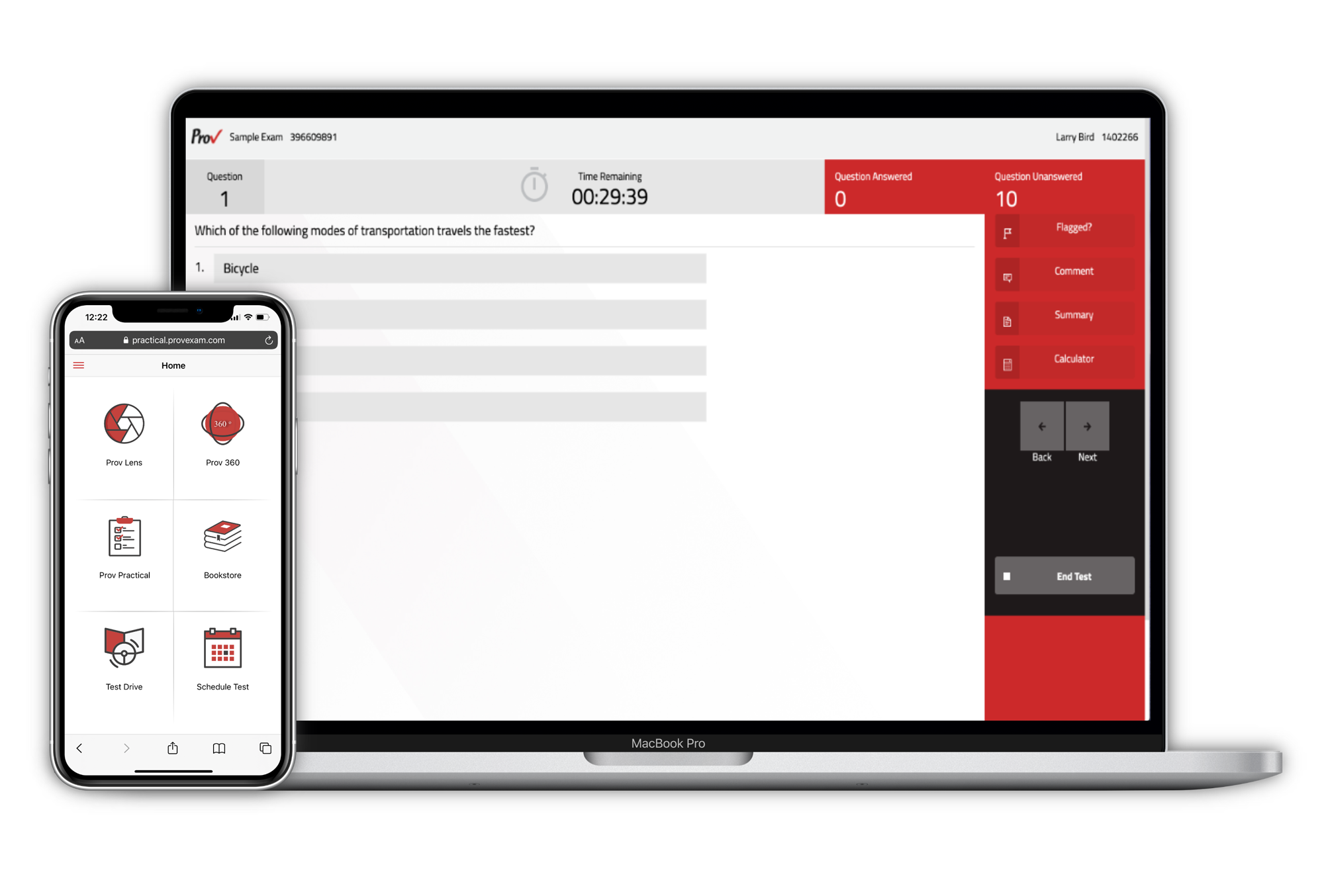
Prov has implemented a new procedure for starting the exams for those taking computer tests. 


The new test launching system offers several benefits over the existing system such as:

  • Improved password access

  • Candidate ID validation

  • Collection of Demographics

  • Test Preview Screen

  • And more.

A new User Manual chapter has been added for Test Administration which details these upgrades.  Also, check out the new "How To" movie titled "Launching Computer Test" if you would like to see it work.


We recommend you take a sample test to see how it will work for you.  Give us a call if you would like some help.


Other Informational Links


The following are links to a few updates and changes we've recently made. 


New home page

Streamlined Ordering

Finding Candidate Comments

No Fax? Then email.

If you have any suggestions or recommendations for improvement to the Arkiv system, please let us know.


Java®  is a Trademark of Sun Microsystems.

Browser Check


Exam Services

Prov is dedicated to serving the needs of occupational assessment and licensing markets. Our exams and assessments are designed to be valid and legally defensible. And our customer service is unmatched by competitors.

From this site, our customers will be able to manage their certification programs; accessing scores and obtaining historical performance summaries.

More Information
Give us a call and we'll show you how we can help:

866-720-PROV (7768) or 386-518-6889.

Customer Support:    ext. 100

Tech Support:  ext. 102

Questions about Orders:  ext. 103


Answer Sheet Fax Numbers

888-741-2962 (toll free continental US)

404-806-9230 (Fax number, AK, HI and outside of U.S.)

Training

Web Conference Center

Download Web Conference setup instructions

NCCER User InformationNCCER

From this page NCCER users will be able to log into ArkivTM, Prov's information management system.  Below you will find the ArkivTM user manual which you may download by topic. The user manual is designed to assist Account Administrators in navigating Prov's online information management system; ArkivTM.  Following the user manual, you willsee several "how to" movies that will show you how to use the system. 


ArkivTM User's Manual (PDF Version)

The following are the most current versions of each topic area.  Check back often to make sure you have the most current version of the manual. 

"How to" Movies
The following links are Movies that demonstrate the process of using the system to accomplish the following tasks. To play these movies, you will need a high-speed connection to the Internet, a soundcard and speakers and the Free Flash Plug-in from Macromedia. Click here to download the free flash plug-in.

Please check back often for updates.


Click here to log in